md linux viewer

Ci sono diversi editors, ma più raro è trovare visualizzatori (viewers) per linux di files md (markdown).
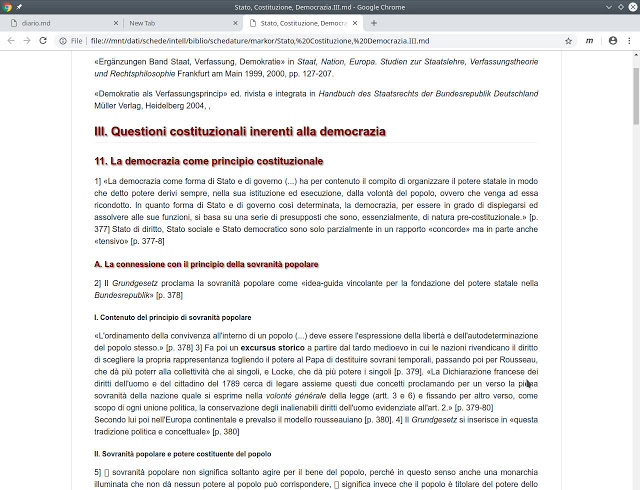
Dopo aver tentato una estensione di Firefox (https://superuser.com/questions/696361/how-to-get-the-markdown-viewer-addon-of-firefox-to-work-on-linux/1175837#1175837) che ha richiesto di modificare i mimetypes del sistema con esiti disastrosi, ho optato per una estensione di Chrome, MarkDown Viewer, che è andata a buon fine al primo colpo (mentre su Firefox avevo dovuto sudare sette camicie), non ha problemi di encoding e rende correttamente le immagini “ridimensionate” e “stilizzate”, ed è inoltre personalizzabile nella resa mediante il css (content.css): si veda il seguente file md

problema di visualizzazione di simboli

Si risolve dichiarando il font-family con uno span=class per esempio.

how to convert an md file md in odt

You can use pandoc. 
In Linux you can then add to Dolphin menu a new action, like: “pandoc %U -o %u.odt && rename 's/md.odt/odt/' *.odt“

I prefer this:

cat %U >> Archivio/$(basename "%u") && sed -i -e 's@<span class="symbol">\\&#58771;<\\/span>@[\\&#58771;]{custom-style="symbol"}@g' -e 's@<span class="symbol">\\&#58772;<\\/span>@[\\&#58772;]{custom-style="symbol"}@g' -e 's@<span class="symbol">\\&#58773;<\\/span>@[\\&#58773;]{custom-style="symbol"}@g' -e 's@<span class="symbol">\\&#58774;<\\/span>@[\\&#58774;]{custom-style="symbol"}@g' %U && pandoc --lua-filter odt-custom-styles.lua %U -o %u.odt --reference-doc="default.ott" -f markdown-auto_identifiers && rename 's/md.odt/odt/' *.odtwhere defaul.ott (LibreOffice defaul template, so that I get an odt file with desired styles) is symlinked from /home to the folder where I have the md files.
Prefer the last pandoc realease, which recognizes filters.

Convert blockquotes

Not:

normal text
> blockqoute
normal text

but

normal text

> blockqoute

normal text

speech to text in Linux con KDE connect

If you cannot speak-to-text directly from the smartphone to PC, you can before dictate a text within KDE Connect and then, after, send it to your PC (provided that your smartphone and your PC are both connected with KDE Connect):

KDE Connect (on smartphone) – > remote input -> small icon on high, as below

Then choose as keyboard, Google Voice Typing

Then you will be able to dictate your text (seeing it, before, on the smartphone [KDE connect] screen) and send it to your Desktop device.